App Only
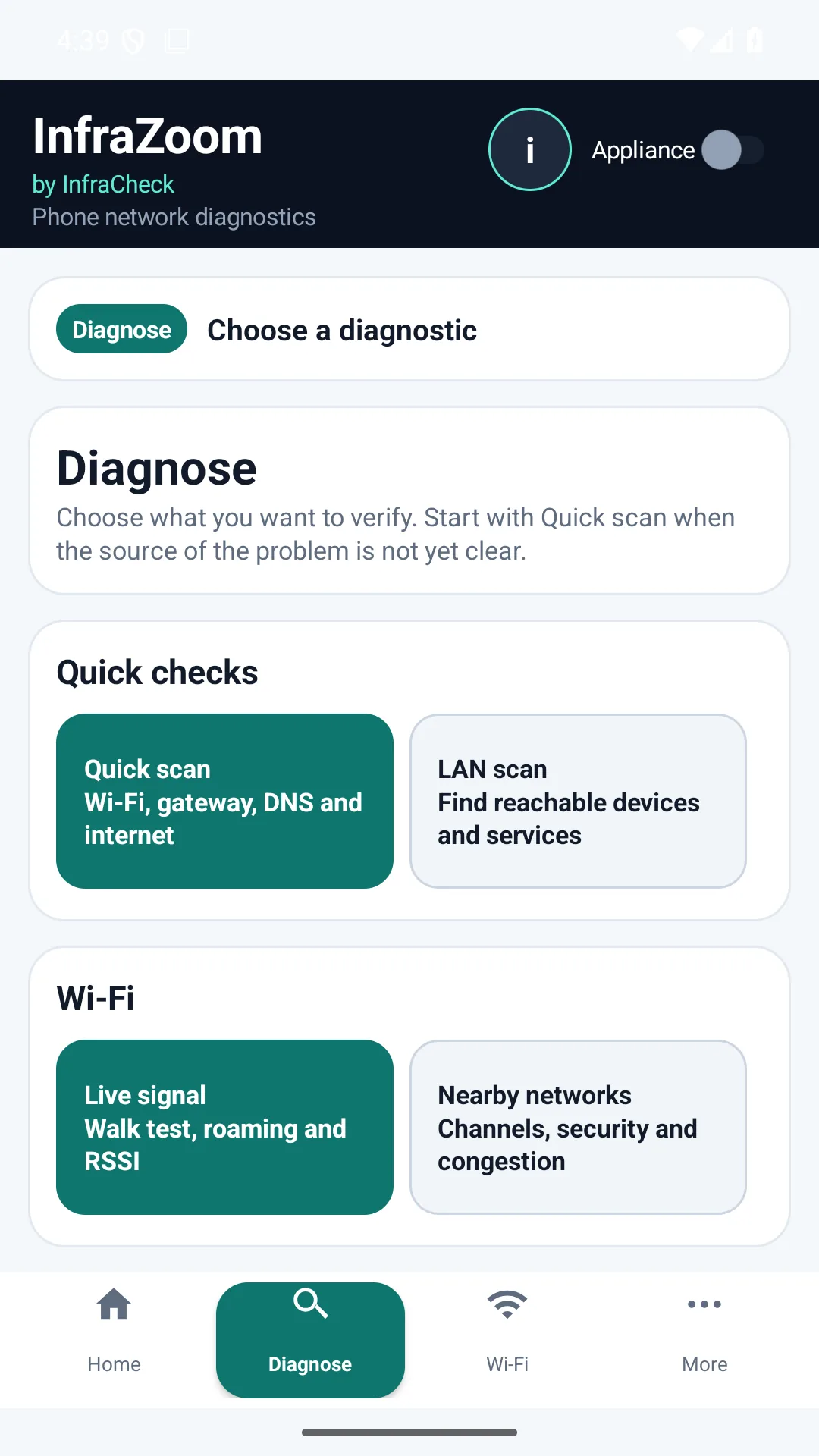
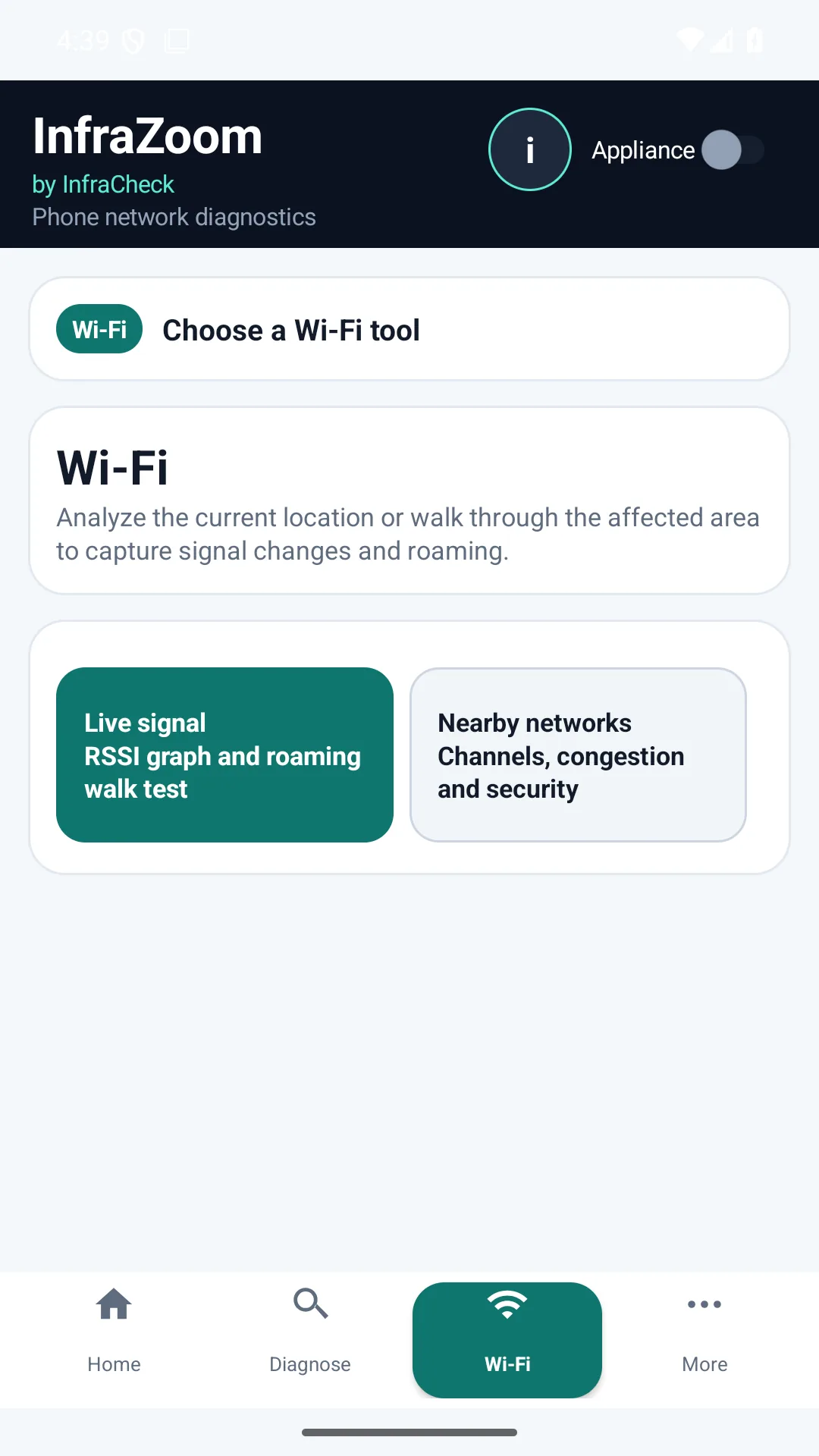
Use the InfraZoom Android app standalone for Quick Scan, Wi-Fi Live, roaming, DNS, HTTP, captive portal, and first-visit evidence.
Product documentation
Full product documentation for InfraZoom Android App Only, Windows App Only, App + Appliance monitoring, local deployment, configuration, reports, security, API checks, and troubleshooting.
Use the InfraZoom Android app standalone for Quick Scan, Wi-Fi Live, roaming, DNS, HTTP, captive portal, and first-visit evidence.
Use the Windows app for PC health, Wi-Fi, Ethernet, LAN discovery, DNS/HTTP/TCP/TLS, DHCP, routes, history and PDF evidence.
Add the local appliance when a site needs continuous telemetry, inventory, alerts, history, and reports.
Generate evidence for support tickets, customer reviews, before/after work, and incident follow-up.
Understand tokens, protected endpoints, metrics exposure, local data, and deployment boundaries.
Validate health endpoints, logs, metrics, manual tests, LAN discovery, throughput checks, and reports.
Premium is planned as a paid self-hosted central portal for multi-site operations. It is not required for free app or appliance use.
Infracheck is a local-first network diagnostics stack for home users, small offices, IT support teams and MSPs. It starts with Android and Windows apps for the user's own device, then adds a Docker-based local appliance when a site needs continuous evidence.
For product positioning and use-case pages, see What is Infracheck, self-hosted MSP monitoring, Docker appliance monitoring, Android Wi-Fi diagnostics, and network evidence reports. For practical troubleshooting intent, use Wi-Fi quality and stability test and local network diagnostics.
App Only is for checking a home, office or user device without deployed hardware. App + Appliance is for continuous site monitoring. Premium License is the planned self-hosted central layer for multi-site and MSP operations.
Phone-side Wi-Fi, DNS, HTTP, captive portal, channel congestion, and roaming evidence for home users, office users and technicians.
Continuous local telemetry, LAN inventory, alerts, reports, and configuration from the field app.
Self-hosted central portal, multiple appliances, white label, alert routing, roles, API, and MSP workflows.
The stack is intentionally simple: the phone captures client experience, the appliance captures site-wide telemetry, and Premium centralization remains self-hosted.
Use App Only when you want to check the network from the phone or PC itself, whether you are troubleshooting your own home Wi-Fi or collecting evidence during a support visit.
Use the Windows app when the complaint needs evidence from a laptop, desktop, wired adapter, VPN path, Windows Wi-Fi environment, DNS resolver, or local subnet. It works standalone and does not require an appliance.
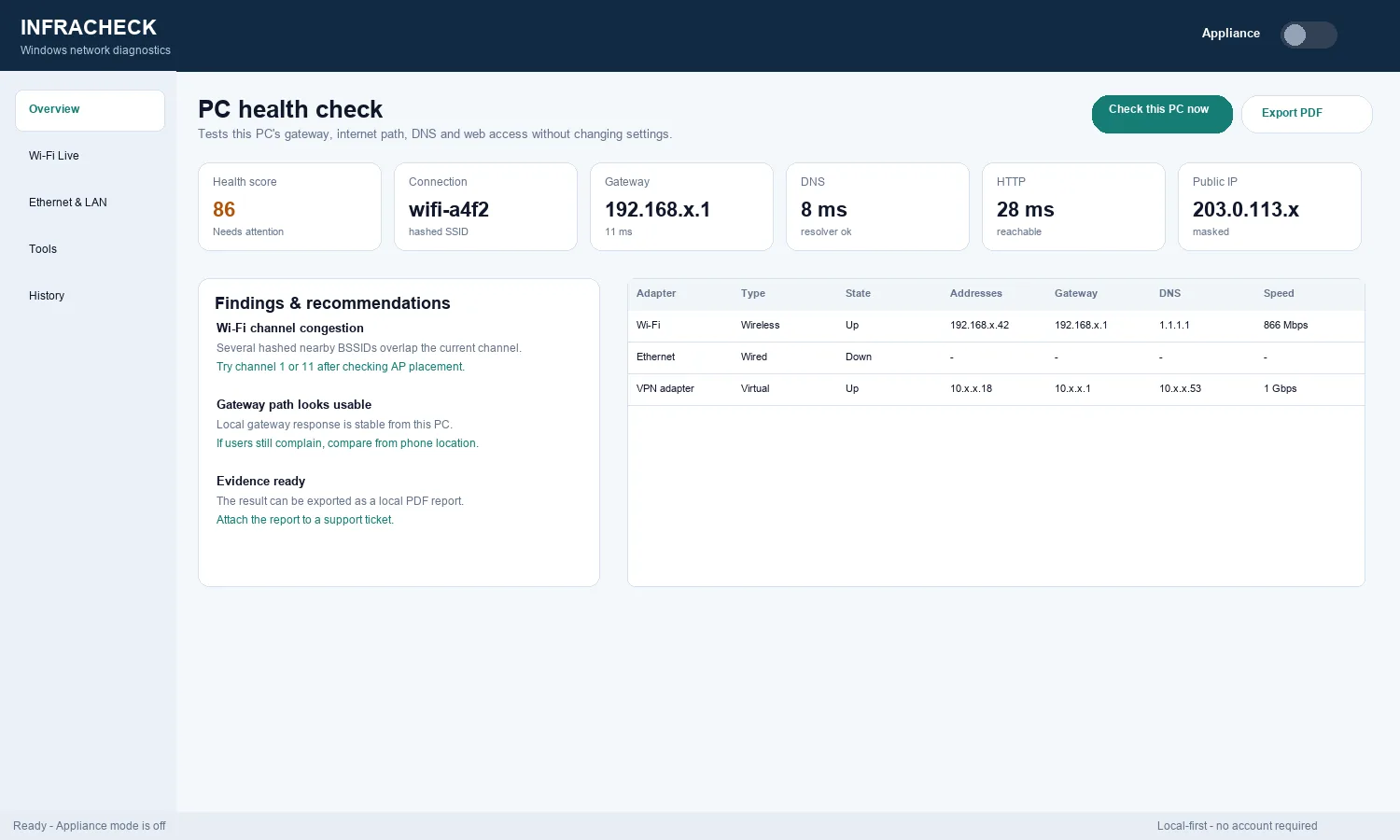
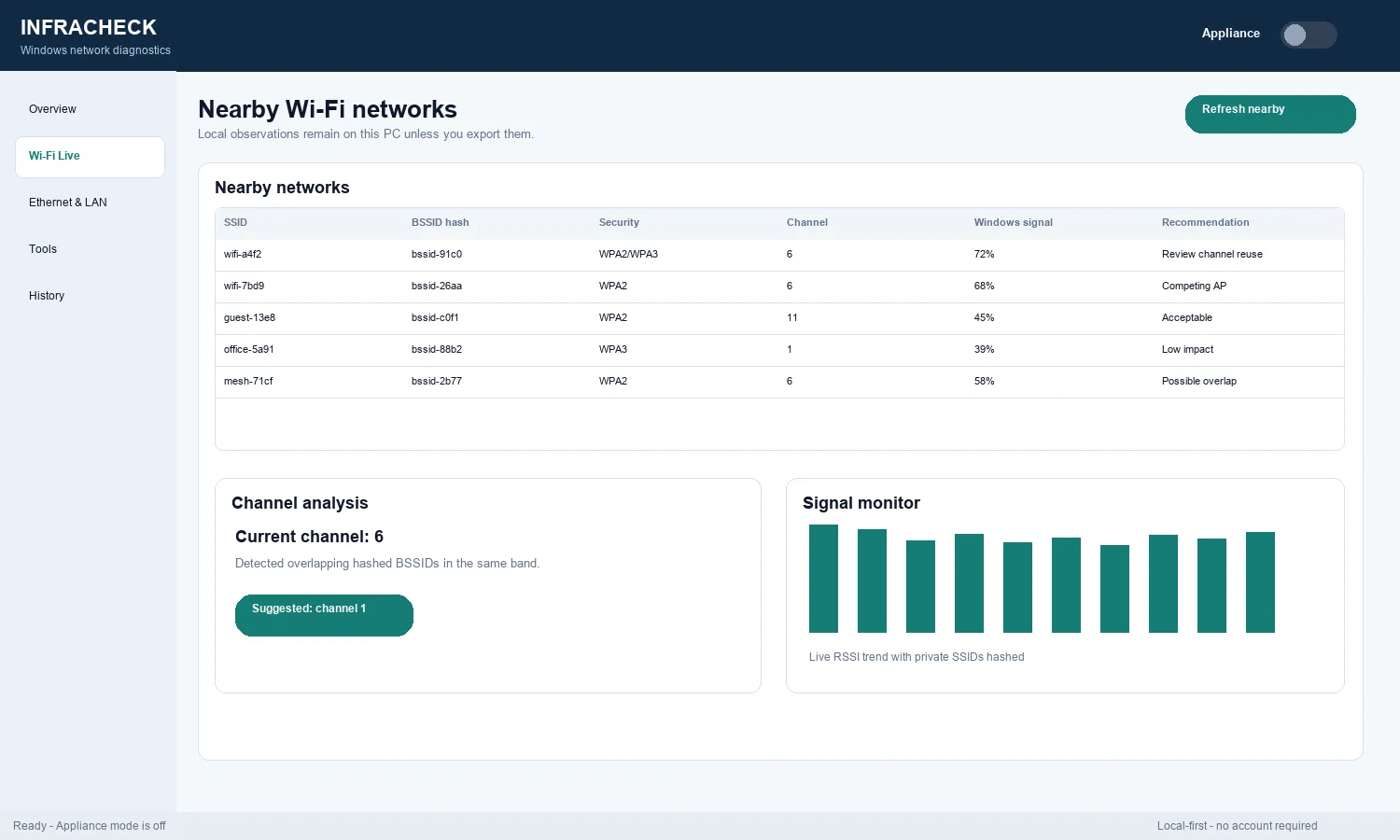
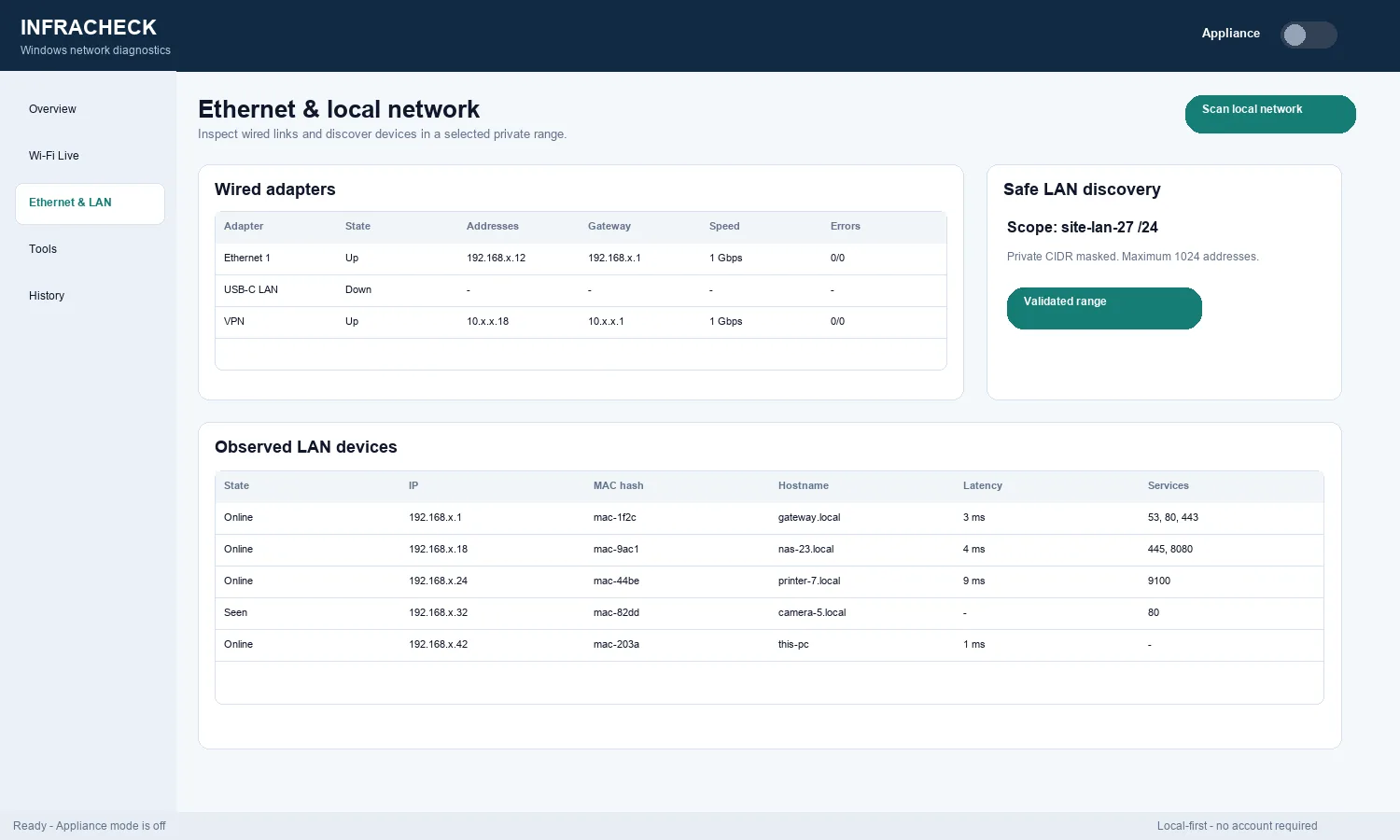
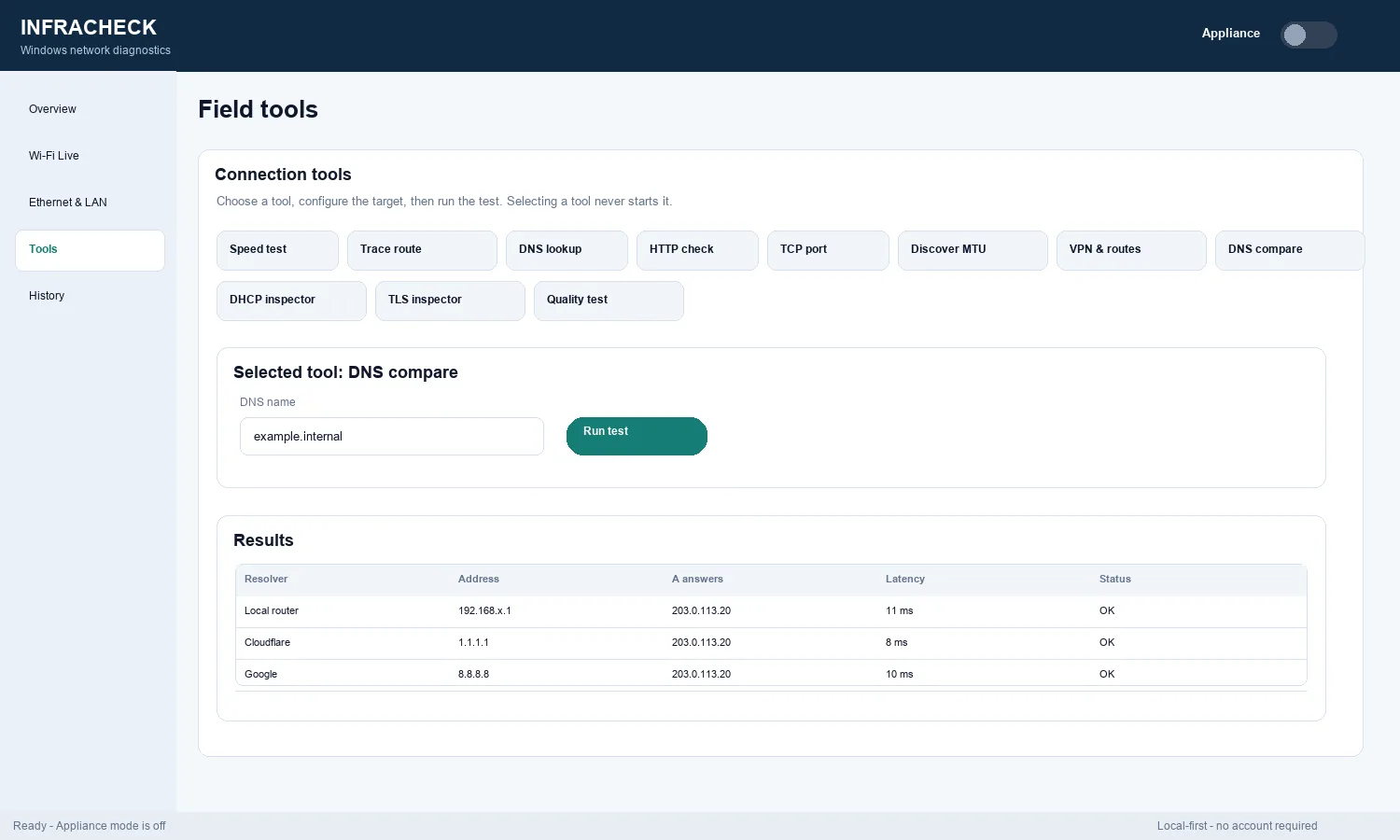
Public screenshots intentionally hash Wi-Fi names and BSSIDs and mask private addresses, appliance URLs, public IP examples, and tokens. The product itself stores diagnostic history locally under the Windows user profile unless the user exports a report.
Use this mode when a Linux Docker appliance is deployed in a home, office or customer network. It is useful when history must remain available after the first check or support visit.
_infracheck._tcp, or pair manually by URL and admin token.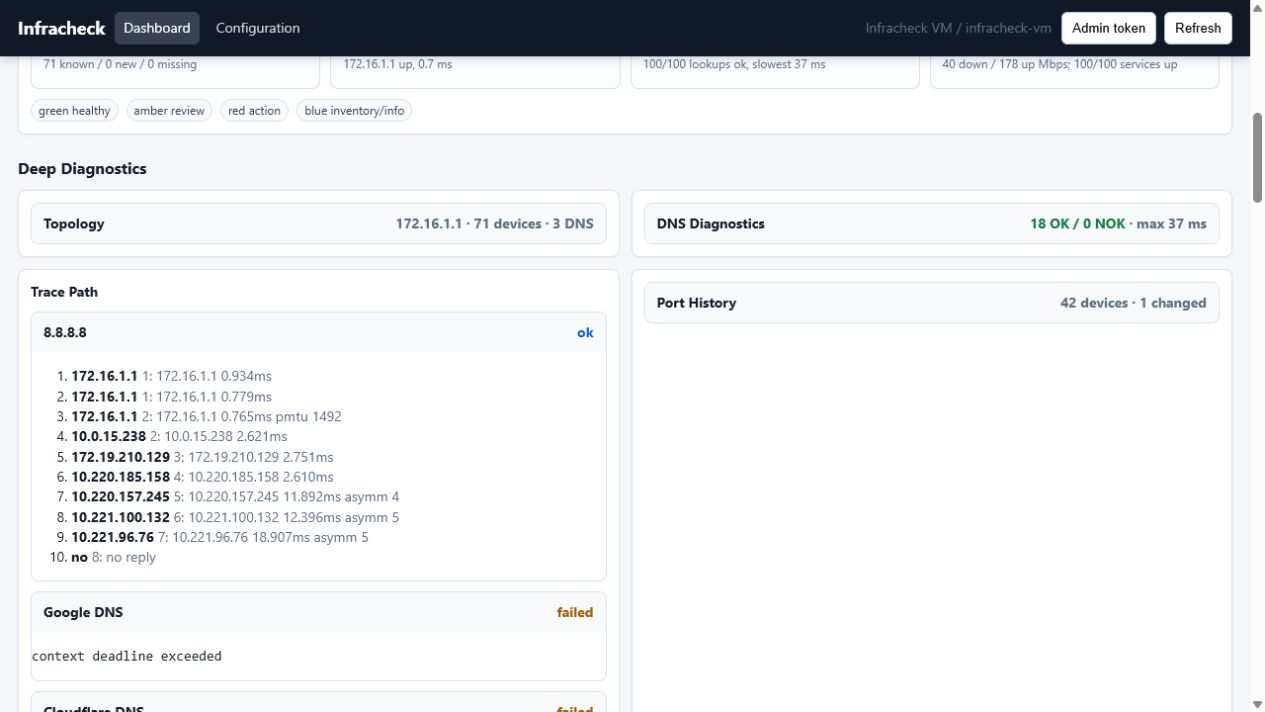
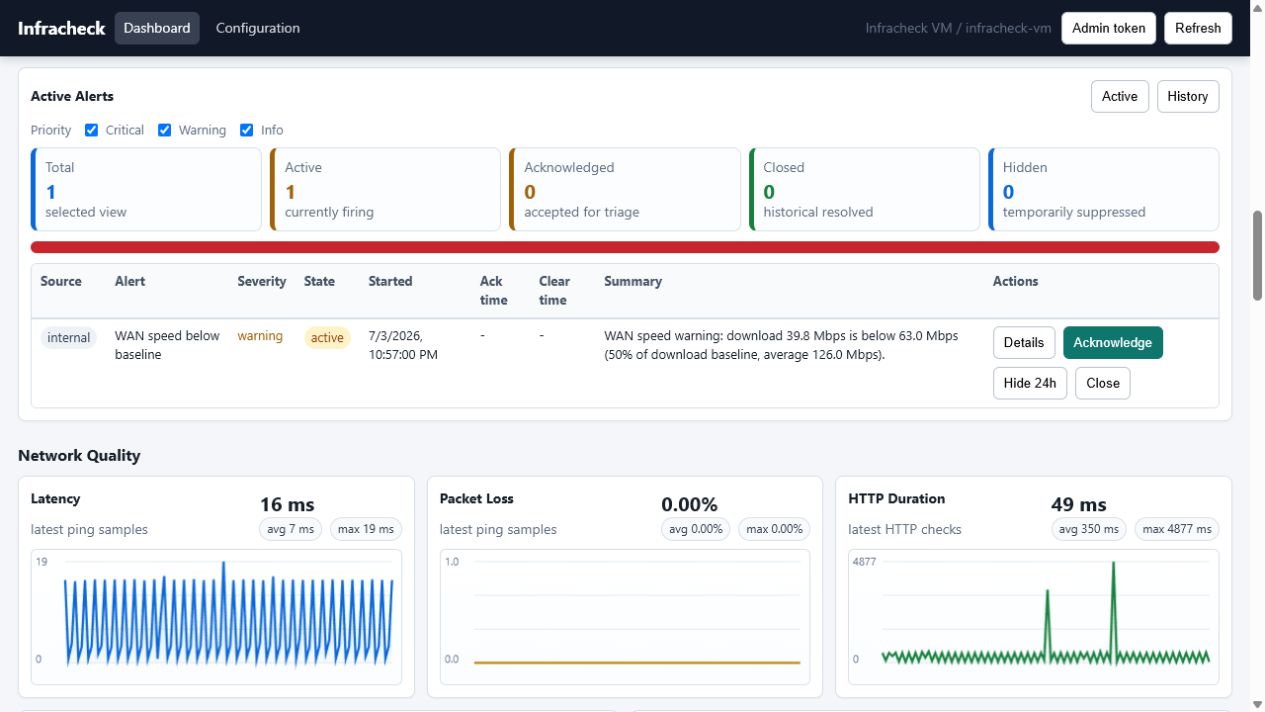
Infracheck v1 targets Linux Docker hosts on the target LAN.
The free appliance repository is available at github.com/gatgserv/infracheck-appliance.
git clone https://github.com/gatgserv/infracheck-appliance.git
cd infracheck-appliance
sh scripts/install-linux.sh.env with generated admin/read/Grafana tokens if missing.config/config.yaml from the example if missing.data/ folder.docker compose up -d --build.http://<host-ip>:8080/uihttp://<host-ip>:3000http://<host-ip>:9090http://<host-ip>:9093Before upgrading, keep a copy of .env, config/config.yaml, and the persistent data/ folder. The appliance stores local history in SQLite and generated reports under the mounted data path.
cd infracheck-appliance
cp .env .env.backup
cp config/config.yaml config/config.yaml.backup
docker compose pull
docker compose up -d --build
If an upgrade fails, restore the previous repository version and the saved config files, then run docker compose up -d --build again. Do not delete data/ unless you intentionally want to clear local history and reports.
The default appliance config is mounted at /etc/infracheck/config.yaml. In local deployments, edit container/config/config.yaml.
INFRACHECK_CONFIGINFRACHECK_ADMIN_TOKENINFRACHECK_READ_TOKENINFRACHECK_PROTECT_METRICSINFRACHECK_ALLOW_PUBLIC_READSINFRACHECK_STORAGE_PATHINFRACHECK_SITE_IDINFRACHECK_SITE_NAMEINFRACHECK_SITE_LOCATIONINFRACHECK_PORT
When discovery CIDRs are empty, the agent auto-detects directly connected IPv4 networks and caps broad masks to /24. For routed networks or multiple VLANs, configure every range explicitly.
targets:
  discovery:
    cidrs:
      - "192.168.10.0/24"
      - "192.168.20.0/24"
      - "10.20.0.0/23"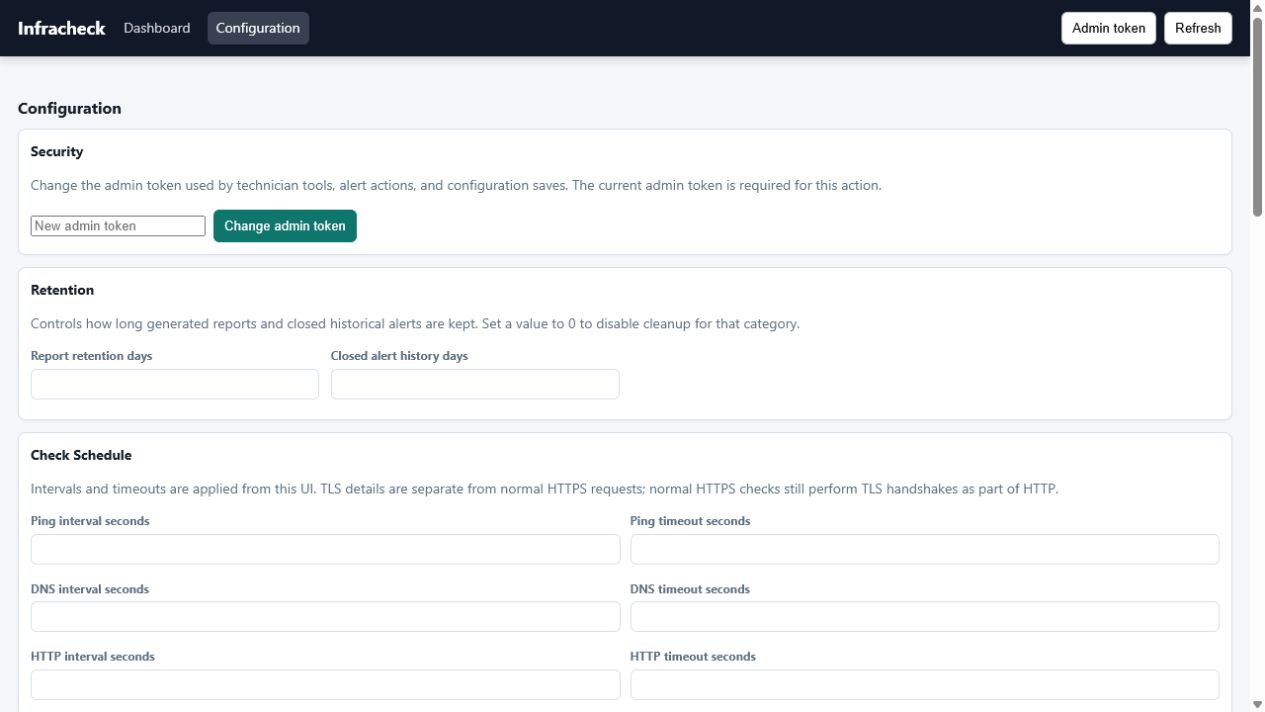
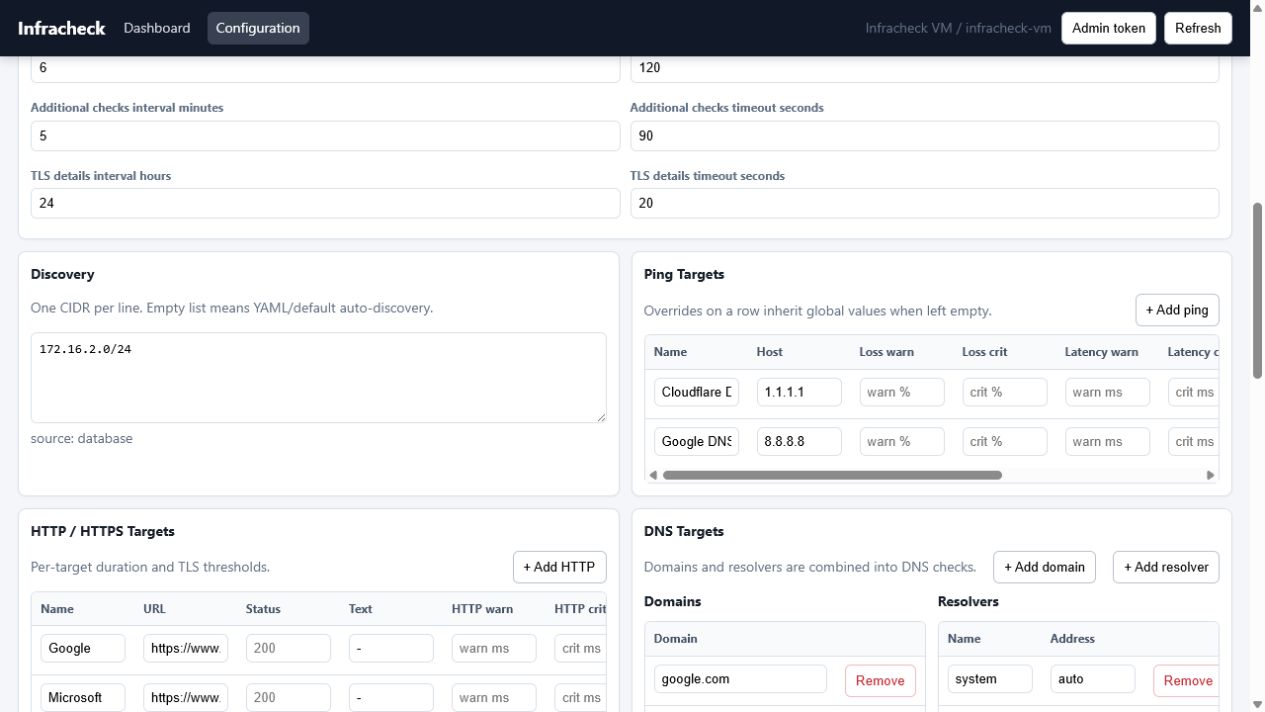
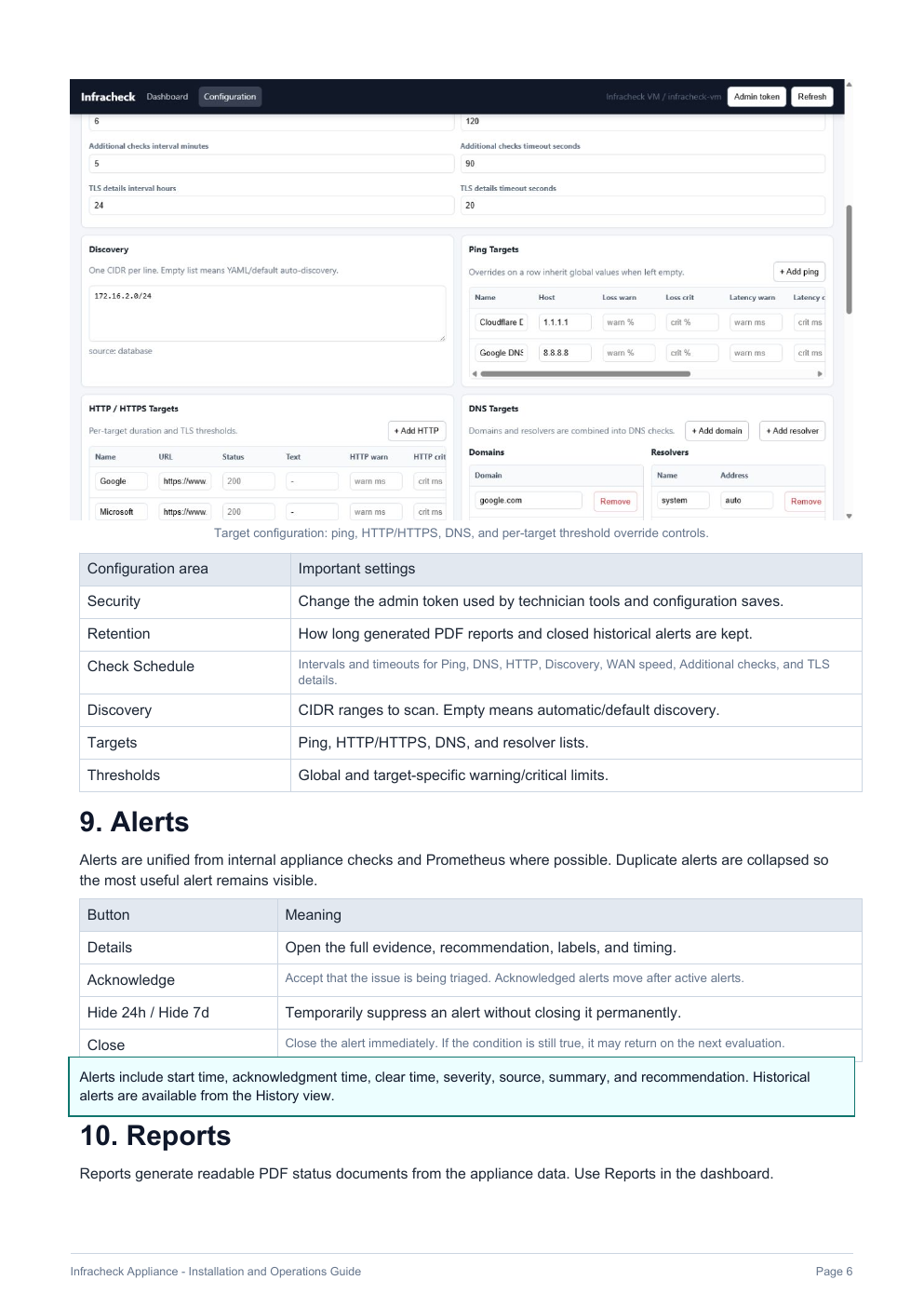
Use the Configuration page to set how often each check runs: ping, DNS, HTTP/TLS, LAN discovery, WAN speed, and advanced checks can be scheduled independently. TLS expiry checks normally do not need minute-level frequency; daily cadence is usually enough unless the target list changes often.
The mounted data path keeps SQLite history and generated reports. Configure retention to match customer policy, ticket evidence requirements, and disk size. For small sites, keeping recent operational history plus selected customer reports is usually more useful than keeping every raw check forever.
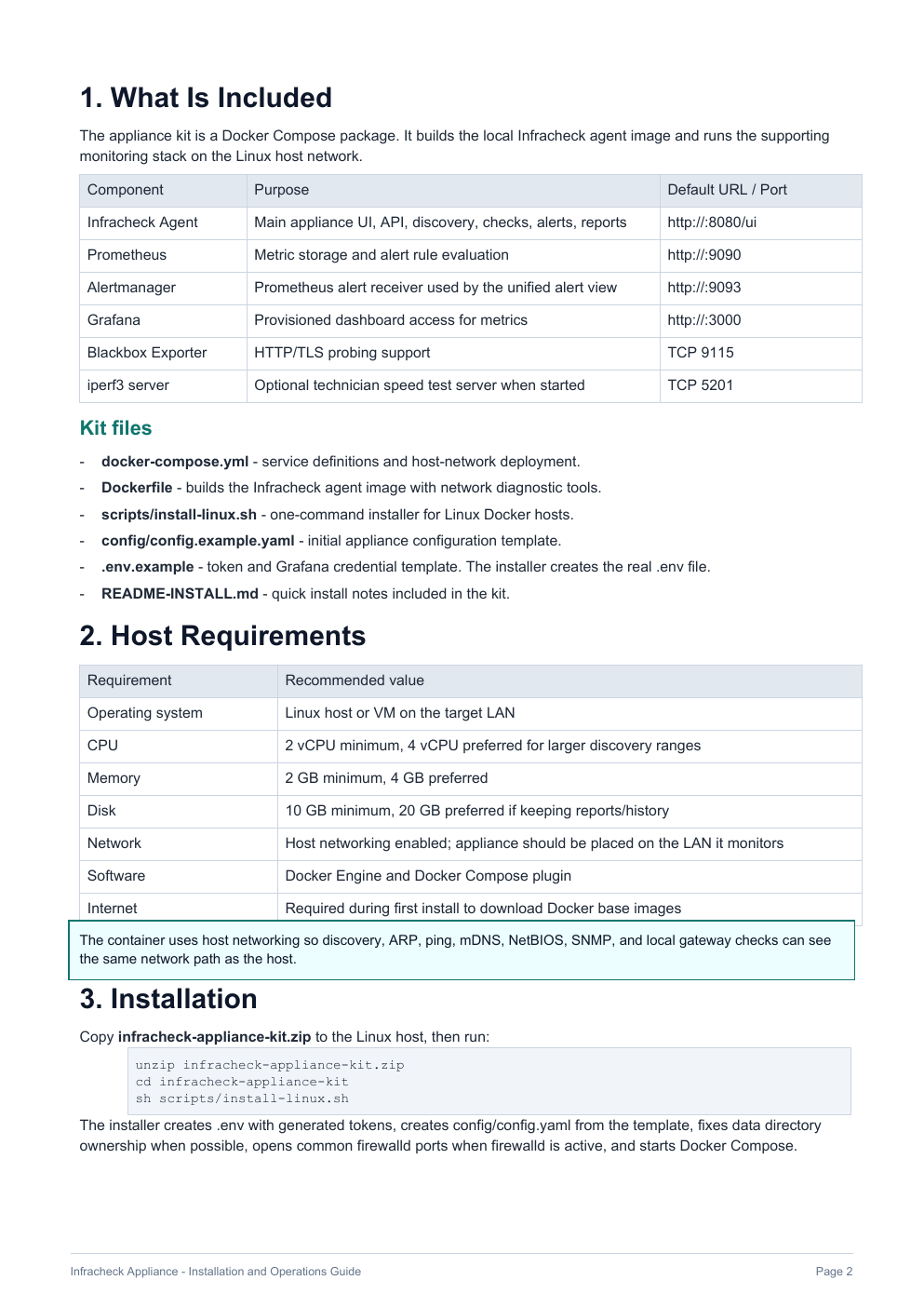
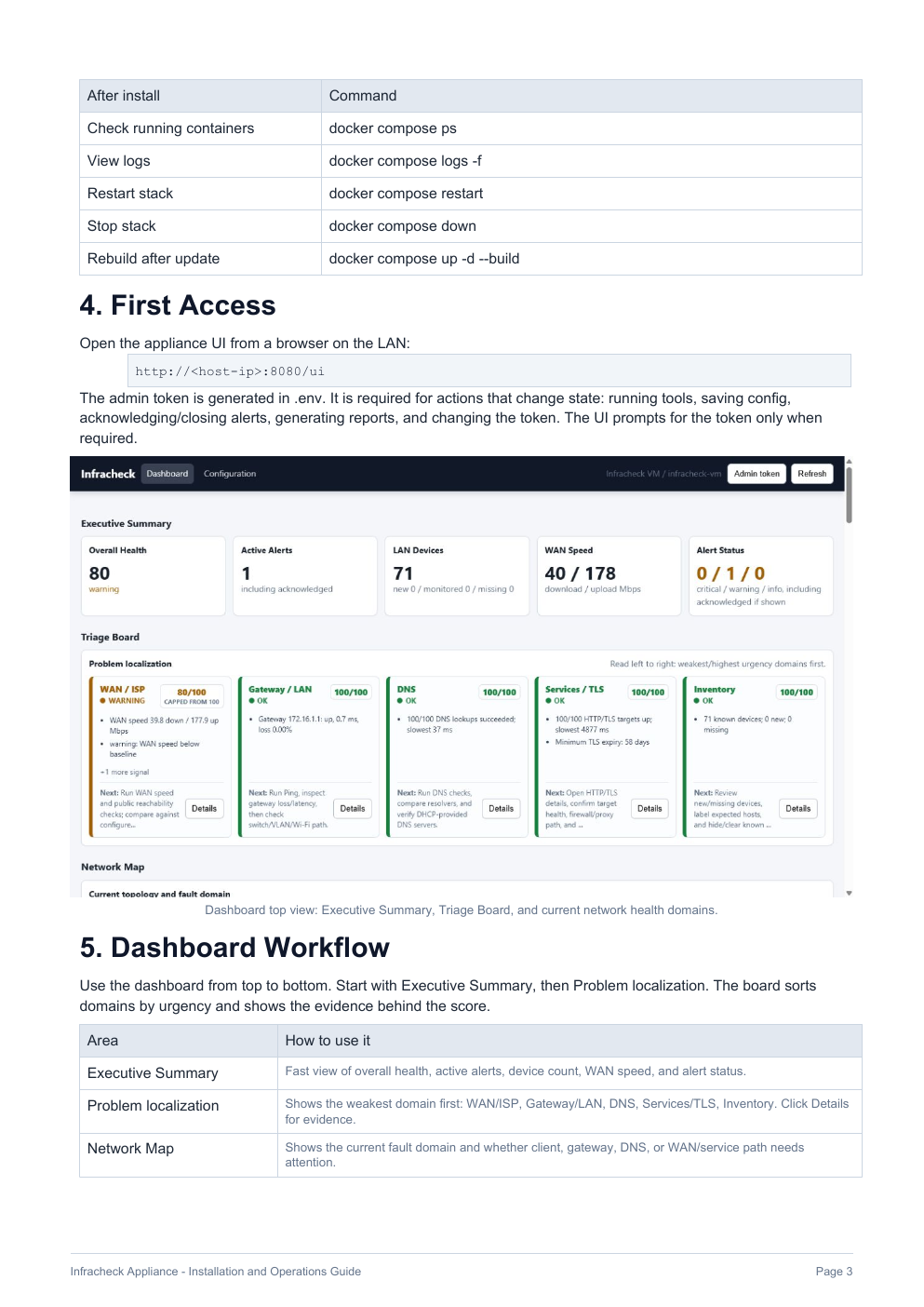
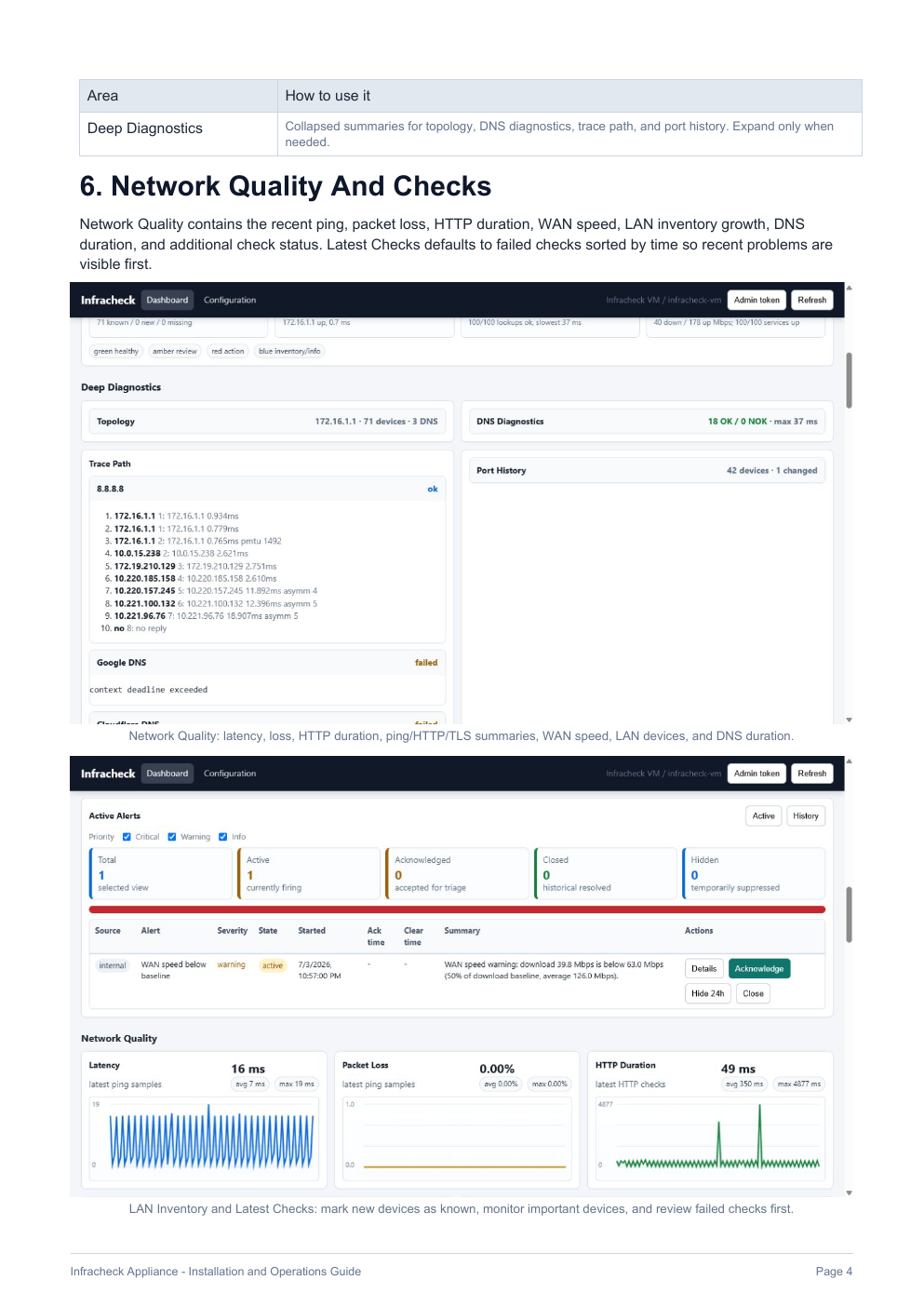
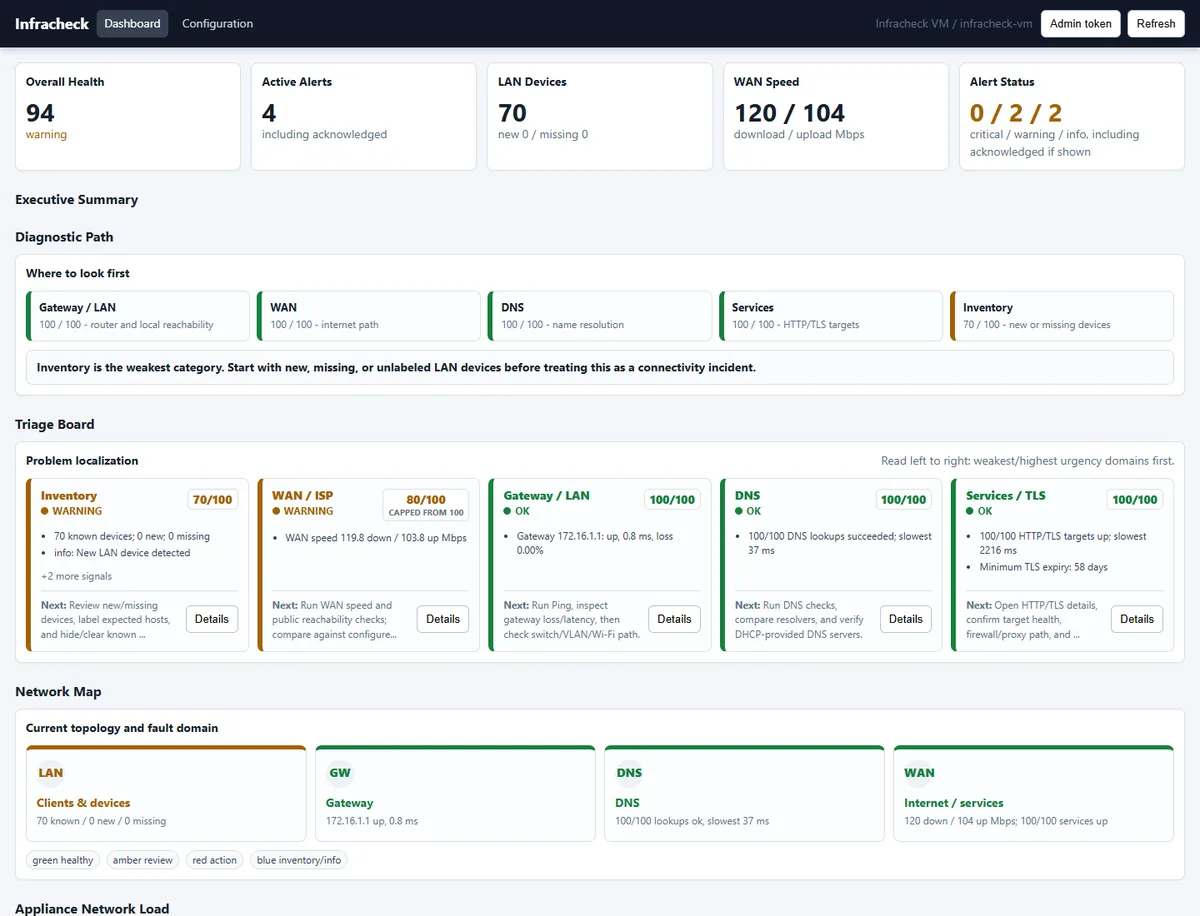
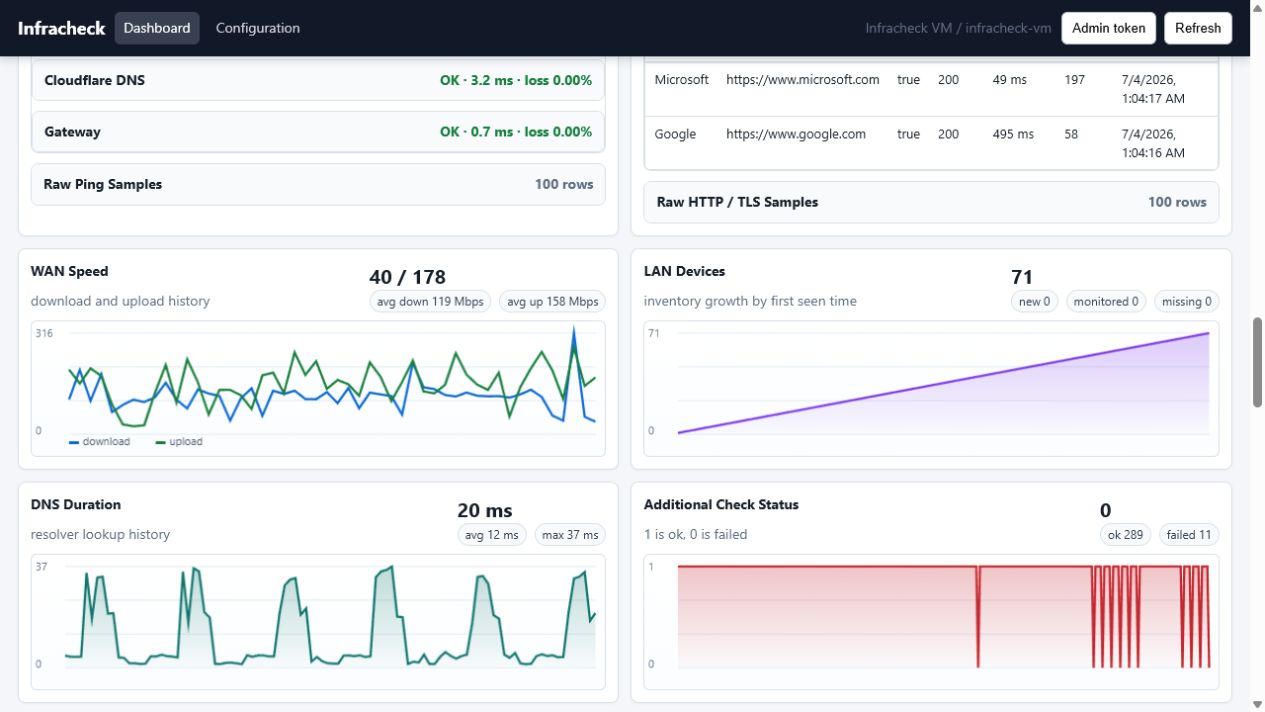
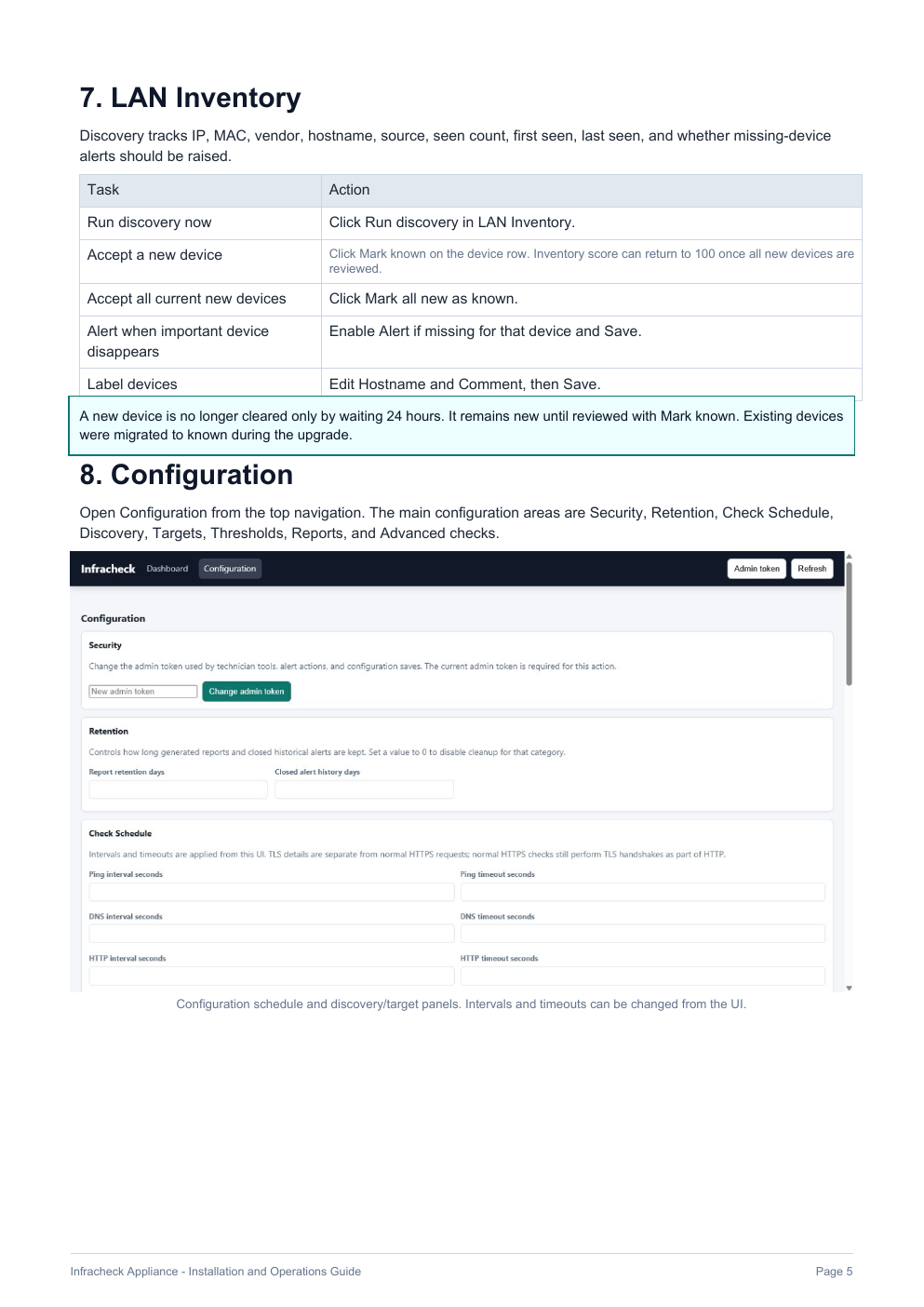
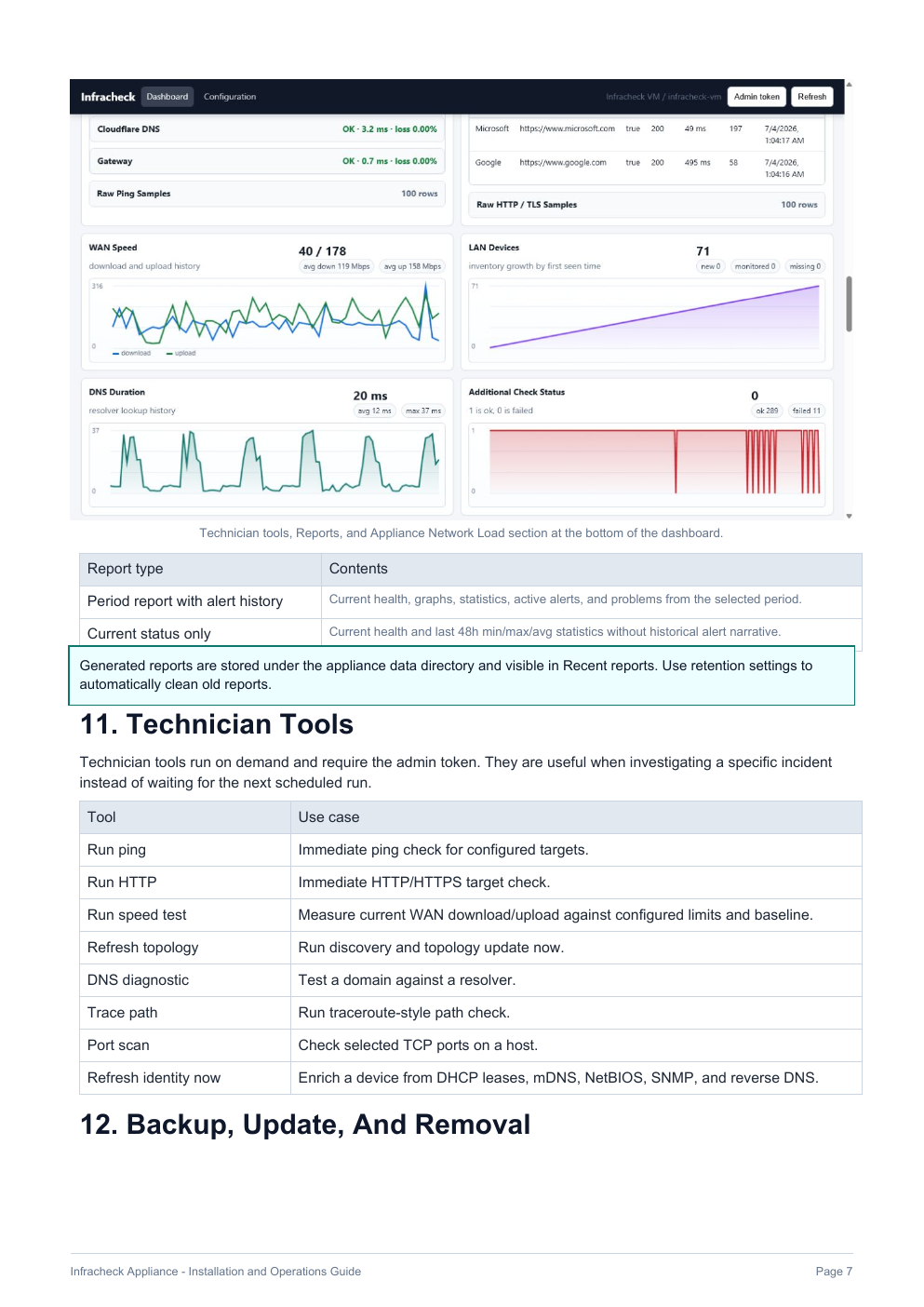
.env, config/config.yaml, and data/ before upgrades or host migration.The appliance UI is designed as a local network health dashboard for owners, administrators and support teams.
Reports convert support work into customer-visible evidence. Use them after installs, after incident triage, before/after remediation, or for recurring account reviews.
Infracheck is local-first. The free appliance runs inside the customer network, and Premium centralization is planned as self-hosted.
security.protect_metrics: true or INFRACHECK_PROTECT_METRICS=true to protect /metrics.security.allow_public_reads: false or INFRACHECK_ALLOW_PUBLIC_READS=false to protect read-only API endpoints.Authorization: Bearer <token> and X-Infracheck-Token: <token>.--privileged by default..env, generated tokens, Grafana credentials, and data/ private.Use these commands during installation validation, troubleshooting, or automation.
curl http://localhost:8080/healthz
curl http://localhost:8080/readyz
curl http://localhost:8080/api/v1/info
curl http://localhost:8080/api/v1/health
curl http://localhost:8080/api/v1/verdicts/latest
curl http://localhost:8080/api/v1/recommendations
curl http://localhost:8080/api/v1/tests/ping/latest
curl http://localhost:8080/api/v1/tests/dns/latest
curl http://localhost:8080/api/v1/tests/http/latest
curl http://localhost:8080/api/v1/tests/speed/latest
curl http://localhost:8080/api/v1/devices
curl http://localhost:8080/api/v1/reportscurl -X POST http://localhost:8080/api/v1/tests/ping/run \
-H "Authorization: Bearer $INFRACHECK_ADMIN_TOKEN"
curl -X POST http://localhost:8080/api/v1/discovery/run \
-H "Authorization: Bearer $INFRACHECK_ADMIN_TOKEN"
curl -X POST http://localhost:8080/api/v1/reports/generate \
-H "Authorization: Bearer $INFRACHECK_ADMIN_TOKEN" \
-H "Content-Type: application/json" \
-d '{"type":"daily","hours":24}'cd container
docker compose logs -fcurl http://localhost:8080/healthz
curl http://localhost:8080/readyz
curl http://localhost:8080/metricscurl -X POST http://localhost:8080/api/v1/iperf/server/start \
-H "Authorization: Bearer $INFRACHECK_ADMIN_TOKEN"
iperf3 -c <agent-ip>
curl -X POST http://localhost:8080/api/v1/iperf/server/stop \
-H "Authorization: Bearer $INFRACHECK_ADMIN_TOKEN"curl -X POST http://localhost:8080/api/v1/discovery/run \
-H "Authorization: Bearer $INFRACHECK_ADMIN_TOKEN"
curl http://localhost:8080/api/v1/devicesIf gateway auto-detection fails, set targets.gateway.address explicitly in the config.
Yes. The field app is positioned as free.
Yes. The local appliance/container is positioned as free.
No. The current positioning is a paid Premium License with a self-hosted central portal.
The free appliance is published at github.com/gatgserv/infracheck-appliance. The Download page links to the repository and version 1.0.0.
http://<appliance-ip>:8080/ui.